
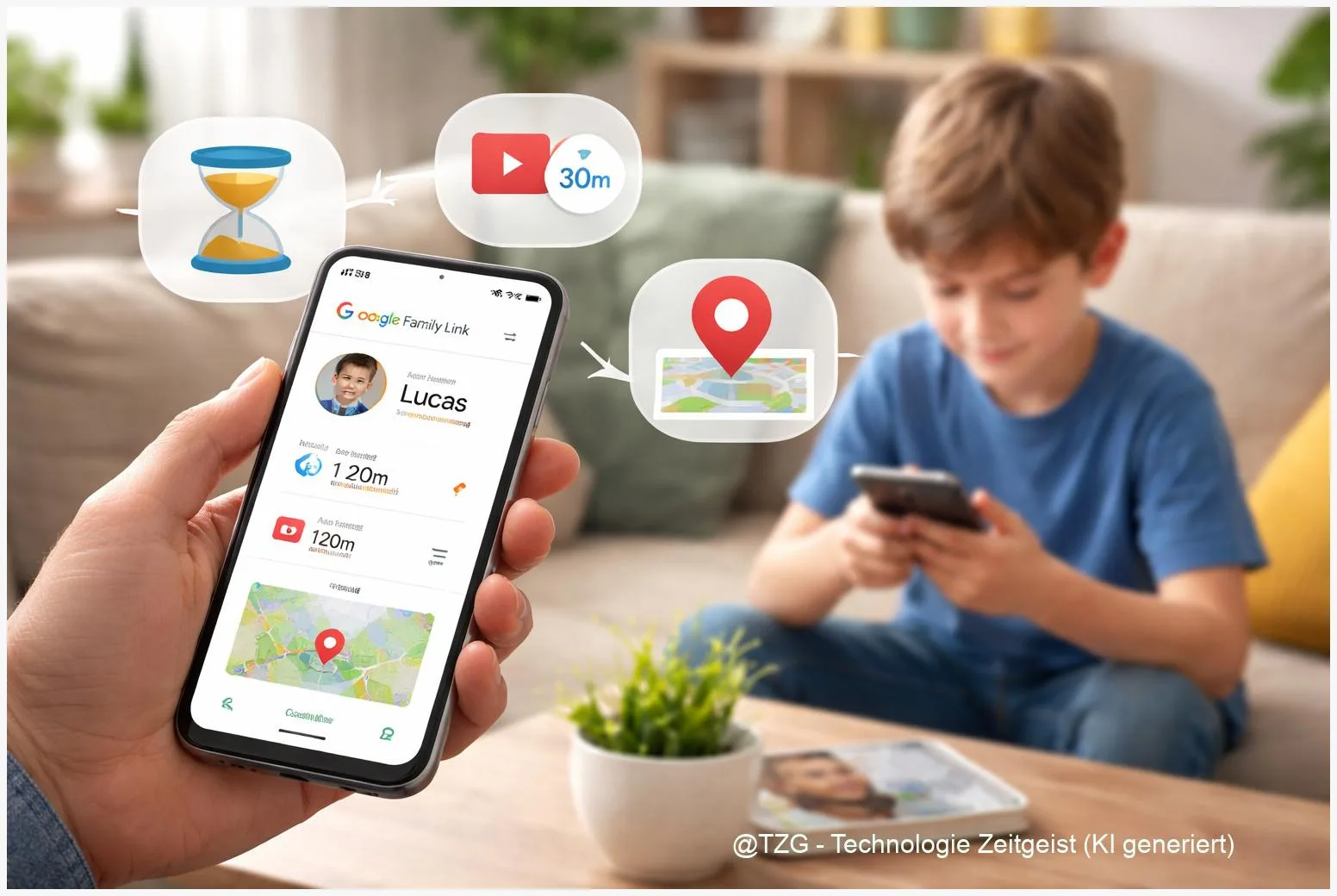
If you want reliable parental controls on Android without guessing your way through menus, Google Family Link is a strong starting point. This guide shows how to do a Google Family Link setup step by step: connect a parent phone with a child device, set daily screen time and bedtime (Downtime), limit or block apps, and enable location sharing. You will also learn what Family Link can and can’t do on iPhone and iPad.
Introduction
Many families don’t need extreme rules. They need a calm baseline: homework time without endless scrolling, fewer surprise purchases, and a way to find a lost phone (or confirm someone arrived safely). Family Link is Google’s free tool for supervising a child’s Google account and (on Android) controlling parts of the device.
The tricky part is that Family Link has two sides: settings on the parent phone and supervision on the child device. If you miss a step, limits may feel unreliable, or location won’t show up when you need it. The instructions below focus on a clean, repeatable setup you can revisit later when your child gets a new phone or your rules change.
Expectation management matters: on Android you get screen time limits, app approvals, and location sharing. On iPhone/iPad, supervision is limited and many controls won’t work as people assume.
Basics and Overview: Google Family Link on Android (and what it means)
Google Family Link works by linking a child’s Google account to a parent (or family manager) account. The parent uses the Family Link app to set rules. The child device applies those rules through supervision built into Android/Google services.
Key terms you will see:
- Supervision: the connection that lets a parent manage a child account’s settings.
- Daily limit: total screen time allowed per day (device locks when time is used up).
- Downtime (bedtime): a schedule where the device is locked (for example, nights).
- App limits / app blocking: time limits per app or a full block that prevents opening the app.
- Location sharing: shows the child device’s location in the parent’s Family Link app (requires the device to be online and location enabled).
Family Link is most effective when it supports clear family rules: it reduces friction, but it can’t replace conversations.
Platform reality: Family Link is designed primarily for Android phones/tablets and Chromebooks. On iPhone and iPad, a child can sign in to Google apps with their account, but device-level controls like screen time limits and location tracking are limited or may not work the way Android users expect.
| Option or Variant | Description | Suitable for |
|---|---|---|
| New Android device setup | Set up supervision while the phone is being set up for the first time (cleanest path). | A new phone/tablet or freshly reset device. |
| Add supervision to an existing child account | Enable parental controls on a Google account that already exists on the child device. | Kids already using a Google account on Android. |
Preparation and Prerequisites (avoid the common setup traps)
Take five minutes for preparation. It prevents most “limits don’t work” and “location not showing” complaints.
- Two devices ready: a parent phone (Android or iPhone) and the child’s device (best: Android phone/tablet or Chromebook).
- Google accounts: the parent needs a Google account. The child needs a Google account too (you can create one during setup for children under the applicable age in your country, depending on Google’s rules).
- Internet connection: Wi‑Fi or mobile data on both devices during setup.
- Update check: install pending updates for Android and the Family Link app. Also update Google Play services on Android if updates are offered.
- Correct date & time: on the child device, set Date & time to automatic. Wrong time can break Downtime and daily limits.
If the child device is not new: consider removing unnecessary accounts first. Google’s help notes that signing a child in can require removing existing accounts on the device, especially when supervision is added during device setup. If you are unsure, back up photos and important files before doing a reset.
Step-by-Step Instruction: Google Family Link setup, limits, and location
These steps cover the standard, reliable path for Android child devices. Wording in menus may vary slightly by manufacturer, but the landmarks stay similar (Google, Family Link, Parental controls, Screen time, Location).
- Install Family Link on the parent phone. Get \”Google Family Link\” from the Play Store or App Store and sign in with the parent Google account.
- Create or select the child account. In Family Link, choose to add a child. If needed, create a Google account for your child (the app guides you through name, birthday, and parent consent where required).
- Set up the child’s Android device under supervision. On the child phone/tablet, sign in with the child Google account. If the device is new, do this during the first setup. If it’s already running, look for Settings > Google > Parental controls (or a similar entry) and follow the prompts to add supervision.
- Confirm the pairing. Family Link typically asks you to confirm the connection (often with a code or approval step). Stay on a stable connection until you see the child profile in the parent app.
- Set a daily screen time limit. In the parent Family Link app, open your child’s profile > Controls (or Screen time) > Daily limit. Choose the time for weekdays and weekends. When time is used up, the device locks.
- Set Downtime (bedtime) for evenings and nights. In the same Screen time area, open Downtime and set a schedule (for example, 21:30 to 07:00). During Downtime, the device is locked except for limited actions like emergency calls, depending on device capabilities.
- Apply app limits and block specific apps. Go to your child profile > Controls > App limits. Pick an app, then set a time cap or choose Block. Family Link can take a few minutes to enforce changes, so don’t judge too quickly.
- Require approval for new app installs (recommended). In your child profile, open Google Play controls (often under Controls > Google Play). Enable requests so new installs or in‑app purchases require your approval.
- Turn on location sharing. In the parent Family Link app, open your child profile > Location > set up location sharing and switch it on. On the child device, make sure Location is enabled and the device is online.
- Do a quick reality check. Lock and unlock once, then verify: (a) a daily limit is shown, (b) Downtime schedule appears, (c) at least one app limit is visible, and (d) location shows a recent update. If something is missing, jump to the troubleshooting section before you rely on it.
If everything is correct, the parent app will show your child’s device and recent activity. On the child phone, you should see a Family Link/supervision notice in the account area, plus limits taking effect when time runs out or Downtime begins.
Tips, Troubleshooting, and Variants (when things don’t apply as expected)
Daily limit or Downtime doesn’t trigger: First check the child device time settings (Automatic date & time). Then update Android, Family Link, and Google Play services. A restart of the child device often helps after changing schedules.
Location shows “Unavailable” or an old position: Confirm the child device is powered on, online, and has Location enabled. Location updates can lag depending on connectivity. If the child has multiple devices, Family Link may show the device that is most actively used rather than every device at once.
App is not fully blocked: Some system apps can’t be blocked. Also, a change may take a few minutes to enforce. If an app keeps slipping through, verify you set the rule for the correct app entry (some services appear as multiple apps).
Mixed households (Android parent, iPhone child or vice versa): The parent app can run on iPhone, but the child device being iPhone/iPad has limited supervision. For iOS device-level controls, Apple Screen Time is usually the more fitting tool; Family Link is mainly useful for controlling access in Google apps on iOS.
Privacy tip that prevents conflict: Tell your child what you can see (for example, location and screen time) and when you check it. Clear expectations reduce the feeling of secret monitoring and make the rules easier to accept.
If you want to go further, consider tightening Android basics that influence enforcement (for example, keep the device updated and avoid extra user profiles). For related everyday Android guides, TechZeitGeist also has practical reads like TechZeitGeist Android how-to articles and TechZeitGeist guides on smartphone privacy settings.
Conclusion
With Family Link set up properly, you can create a workable routine: daily screen time limits for normal days, Downtime for sleep, app limits for the biggest time-sinks, and location sharing for peace of mind. The most important success factor is a clean setup on the child’s Android device, plus correct time settings and regular updates. Keep in mind that iPhone and iPad support is limited, so the best results usually come from Android child devices (or using iOS-native controls on Apple devices).
Which rule helped most in your household: bedtime Downtime, app limits, or install approvals? Share your experience and any tips that made the setup smoother.




Leave a Reply